Tuesday, August 3, 2010

slow window startup: different ways to speed up window startup

1 comments
windows vista slow startup / windows XP slow startup these are very common problem
we have facing regularly in our computer.but no problem windows xp slow startup/
windows vista slow startup problem can easily solve.your window startup will be
faster than never before.just follow the following steps to overcome windows vista slow startup / windows XP slow startup.their are many reason for window startup
become slower like viruses,no maintainance,slow ram,no disk cleanup and so on.

ways to speed up window startup:
to overcome windows vista slow startup / windows XP slow startup problem
1:press window+R or open the command prompt then type command msconfig in it.

2:one window is open then click on the boot tab.in the tab you will see one box labelled as Timeout.and its default value is 30.this value indicate the time it
wait before the boot.change this default value to any value like 3,5 etc this value
must be more than 3.
this will help to overcome windows vista slow startup / windows XP slow startup problem.

3:regularly use antivirus and scan computer daily to overcome any trouble due to
viruses.

4.delete temporary files from your computer to do that type "%temp%" in the run dialog box.and delete all the files under this folder.

5:clean your window registry periodicaly.

6:perform the disk fragmentation regularly.

7:another ways to speed up window startup is delete the files from c:/windows/perfetch folder.after deletion of the prefetch files their is need to change the
registry values associated with the prefetch.
to open that go to registry editor by typing regedit.exe in the run window
then go to HKEY_LOCAL_MACHINE\SYSTEM\CurrentControlSet\Control\Session Manager\Memory Management\PrefetchParameters
and change the key values like
0 - Disabled : The prefetch system is turned off.

1 - Application : The prefetch only caches applications.

2 - Boot : The prefetch only caches boot system files.

3 - All : The prefetch caches boot, and application files.

so i hope this tips will overcome windows vista slow startup / windows XP slow startup

Sunday, August 1, 2010

Trace Mobile Number: How To Trace Mobile Number In India

1 comments
friends we are all getting call on phone and need to trace mobile number its location and more about this number.in this article i given ways to how to trace mobile number in india.there are many wesites and softwares provide facilities for trace mobile number in india.thus the below i given some ways to trace mobile number in india.and mention some link to the websites or software for trace mobile number.

how to trace mobile number in india:
I have listed 4 useful sites/softwares to trace mobile number in India.

1. Wiki page:
Wiki contains mobile numbering system which contains a list of phone numbers and their network operators with locations. Thus, only first 4 digits of target phone number can be useful to trace mobile number in India using this mobile numbering system.


2. Internet4Mobile:
If you want an automated system to trace mobile number, use this service provided by Internet4Mobile. There are many similar services available on web, but I recommend this one as it provides you following information about Mobile number:

- State
- City (only provided by this service).
- Operator
- Locate mobile number on Google Maps.


3. Mobile Tracking Software:
Well, if you want to trace a mobile number in India directly from your cell phone, you can use Mobile phone application – Mobile Number Locator. This application allows you to find mobile number location right from your cellphone.

4. Other Useful Websites:
Some of the useful websites to trace mobile number in India:

- Bhartiyamobile
- IndiaTrace (variety of Tracing features).

So friends, I hope you can now trace mobile number in India from the links given in above article. If you have any problem in this tutorial on how to trace mobile number in India, please mention it in comments.

Enjoy n trace mobile number in India…

Saturday, July 31, 2010

Low Virtual Memory

0 comments
low virtual memory is common problem today facing lots of computer.virtual memory is the compensation for random access memory i.e RAM.sometimes we install any game or software during installation computer gives the error message i.e low virtual memory.
low virtual memory is very common problem it is very easy to solve this problem.
#change the size of virtual memory:
             If you receive warnings that your virtual memory low, you'll need to increase the minimum size of your paging file. Windows sets the initial minimum size of the paging file at the amount of random access memory (RAM) installed on your computer plus 300 megabytes (MB), and the maximum size at 3 times the amount of RAM installed on your computer. If you see warnings at these recommended levels, then increase the minimum and maximum sizes follow the following steps.

1.open my computer and and goto system properties.

2.In the left pane, click Advanced system settings. If you are prompted for an administrator password or confirmation, type the password or provide confirmation.

3.On the Advanced tab, under Performance, click Settings.

4.Click the Advanced tab, and then, under Virtual memory, click Change.

5.Clear the Automatically manage paging file size for all drives check box.

6.Under Drive [Volume Label], click the drive that contains the paging file you want to change.

7.Click Custom size, type a new size in megabytes in the Initial size (MB) or Maximum size (MB) box, click Set, and then click OK.

Increases in size usually don't require a restart, but if you decrease the size, you'll need to restart your computer for the changes to take effect. We recommend that you don't disable or delete the paging file.
 above steps will definately solve low virtual memory problem.

Wednesday, July 28, 2010

how to backup registry

1 comments
friends this article give you the important guidlines to how to Backup Registry or recover registry
sometimes we are intented to change the registry key values by using registry editor. their may be chance to some trouble
may be happen.to overcome such trouble due to registry key values changes their is
need to backup registry. below i have given some
steps to backup registry.

how to backup registry:
open the command prompt on you computer.
then type command regedit.exe to open registry editor window.
then select the key or subkey you want to backup on your any drive or removable media such as pendrive/cd/dvd and so on.
after the selection of key or subkey to backup registry click on the file menu
in the above toolbar.
then click on the export. then one window is open.
select the location where you want to save the backup copy, and then type a name for the backup file in the File name box.
after all the completion click on save.to complete the whole processor.
you can use this backup registry any time when some trouble you facing by importing this backup registry by selecting import option from menu in the toolbar
enjoy this article surely work for you..
for more detail i have given screen shot of whole processor below.

Monday, July 26, 2010

Boost Firefox Speed

0 comments
slow internet connection no problem use mozilla firefox browser and increase its speed by 20 to 30% just by using this below trick.by using this trick we can easily
boost firefox speed by 30%.and you can surf faster than before.youcan also increase download speed of
firefox browser.
to use the trick to increase firefox speed just follow the following steps

Type about:config in the address bar,then some window is appear in the browser
having some key values in it change the following field key values.

network.http.max-connections-per-server =32
network.http.max-persistent-connections-per-proxy =16
network.http.max-connections = 64
network.http.max-persistent-connections-per-server = 10
network.http.pipelining = true
network.http.pipelining.maxrequests = 200
network.http.request.max-start-delay = 0
network.http.proxy.pipelining = true
network.http.proxy.version = 1.0

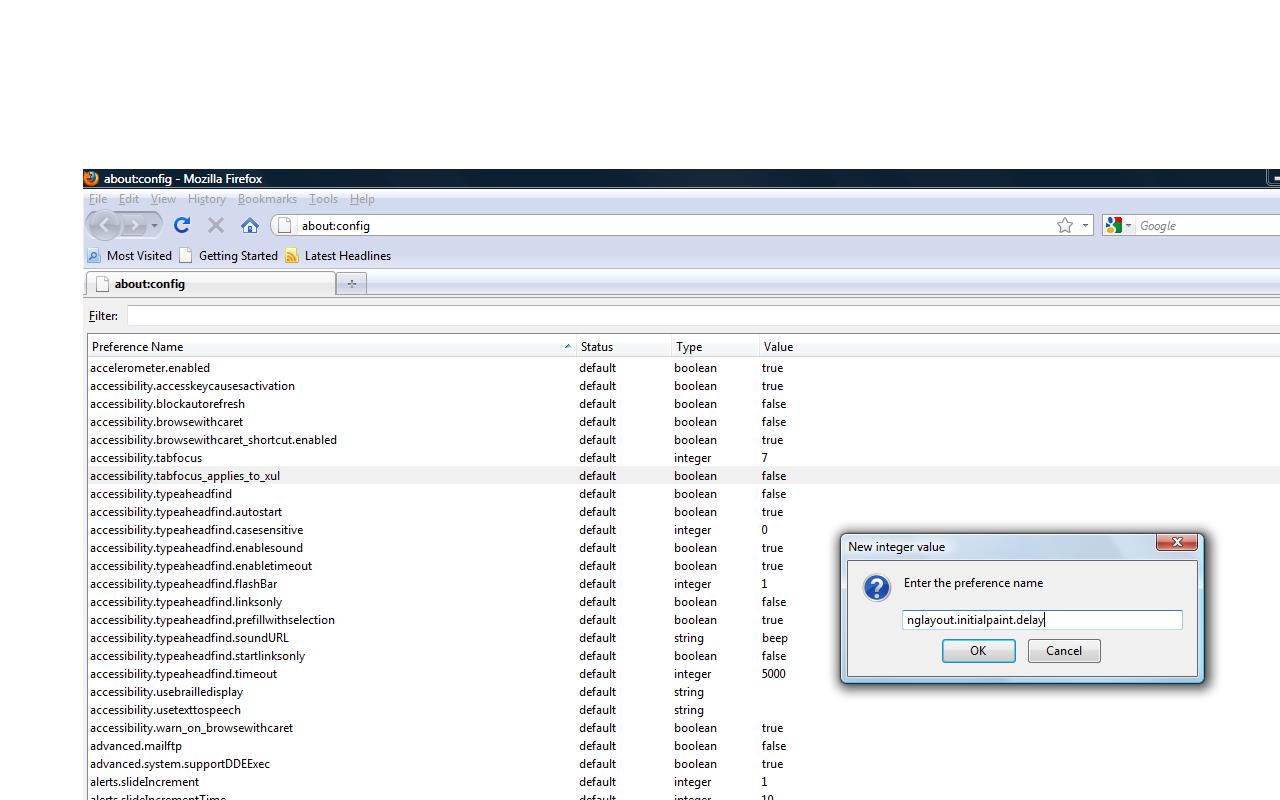
Lastly right-click anywhere and select New- Integer.then type nglayout.initialpaint.delay and set its value to 0. This value is the amount of time the browser waits before it acts on information it receives.
this trick decrease ram usage firefox and boost firefox speed.enjoy this is really works...

Saturday, July 24, 2010

PASSWORD RESET DISK::FORGOT PASSWORD::PASSWORD RECOVERY

0 comments
Many times we face this common problem i.e password forgot.what we can do in such scenario one option is password reset disk. this trick is very simple for password recovery.friends this is very helpful to us for password recovery. i have given below how to make password reset disk and how to use password reset disk to recover password follow this steps and overcome the problem.

how to use password reset disk and when:


If you enter the wrong password when you attempt to log on, Windows displays a message that the password is incorrect. Click OK to close the message.

Click Reset password, and then insert your password reset disk .

Follow the steps in the Password Reset Wizard to create a new password.

Log on with the new password. If you forget your password again, you can use the same password reset disk. You don't need to make a new one.

how to make password reset disk
to make password reset disk first thing u should need removable media such as cd/dvd/pendrive and so on.
insert any removable media.
then first task goto the control panel then goto user account wizard by clicking on it.

then click on Create Password Reset Disk on the left side panel.
to make it you should have your own window password for password verification.
follow the tasks given it to accomplish all the process.
finally you get password reset disk keep it in arcane place and use it you forgot
your windows password according to above given task of how to use password reset
disk.

Sunday, July 18, 2010

"black screen apppear at the start up"?

0 comments
How to solve problem of "black screen apppear at the start up"?


sometimes after starting your computer desktop is not seen only black screen is seen to us. this problem is happen due to viral attack.actually the "exlporer.exe" process is not running at the time of startup."explorer.exe" is very nessessory proceess which is required for start your desktop screen the main cause of this problem is explorer.exe process is not run at start up. to solve this problem one way is to scan your whole computer then see what happens. after whole scan still problem is not solve. then another option is open your computer in safe mode with command prompt and give password authentification.finally you get command prompt on your desktop then type explorer.exe command in the command prompt. you will definately get desired output.but by using this way you only works in safe mode.to solve this problem in regular startup you have to follow the steps given below. the easy way to solve this problem is when black screen appear at startup

press 'Alt+ctrl+delete" then task manager window is open.

click on file option in given tab.

then click on New Task (run).

after that new window is open in that window type "explorer.exe".

press ok button then automatically your desktop is working.


if you dont get any output then finnal solution is format your whole computer.

Sunday, October 11, 2009

Private Character editor..

0 comments


1).Private Character Editor?


You can use Private Character Editor to create your own characters, which you can then insert into documents by using Character Map.


Using Private Character Editor, you can:


*Create new characters.


*Edit existing characters.


*Save characters.


*View and browse your character library.


To open private character editor you should login as administrator and give password conformation.


to open private character editor type “Eudcedit.exe” command in “command prompt” you get private character editor use it to create your own character. And for use of this character browse it from font.


2).Insert a special character created by you into a document (ASCII codes)


Special characters are characters that cannot be found on your keyboard. These can include symbols, special mathematical characters, and characters from other languages. You can insert special characters into your documents by using Character Map.


*open Character Map:to open character map type "character map" at window search you get character map which help you to use special characters.


*In the Font list, type or select the font you want to use.


*Click the special character you want to insert into the document.


*Click Select, and then click Copy.


*Open your document and position the cursor where you want the special character to appear.


*On the Edit menu, click Paste.

Saturday, October 10, 2009

Corrupted Files Reasons and Solution..

1 comments
Corrupted files is one of the basic problem of any computer.there are many reasons for file corrupt.such as
$ Software malfunctioning.
$ Virus attack.
$ Due to bad sector in the disk.
$ Media corruption.


all information about corrupted files are given below.  
1). What are corrupted files?
Corrupted files are files that no longer work properly. You can occasionally repair a corrupted file, though most corrupted files can't be repaired and should be deleted or replaced.

2). How do I know if a file is corrupted?
Here is a simple test: If you try to open a file and it does not work properly, it is probably corrupted. If the file can be opened, edited, and saved without incident, though, don't worry about it. If the corrupted file is an important system or program file, Windows or another program will warn you that there is a problem and might recommend that you reinstall the program.

3). How do files get corrupted?
It's very rare for a file to become corrupted. The most common way it happens is when something goes wrong while a file is being saved. For example, the program saving the file might crash, or your computer might lose power just as the file is being saved.

4). What should I do if I encounter a corrupted file?
If the file can be repaired, you will need to find a program that can repair corrupted files .from my personal experience i
suggest some corrupted file recovery softwares try it. it will definately help you to recover corrupted files.

Download file recovery software


5).How do I avoid corrupted files?
Though it's very rare for a file to become corrupted, you can decrease the chances of creating corrupted files by protecting your computer's power with a surge suppressor or uninterruptible power supply (UPS). Also, always properly turn off your computer. Avoid forcing the computer to turn off by pressing and holding the power button (unless using the power button shuts down Windows normally). For more information, see Turning off your computer properly.

6). What if I can't fix a corrupted file?
You should delete the file. If you previously backed up your computer's hard disk, you might be able to retrieve an older version of the file. If the corrupted file is an important system or program file, you might need to reinstall the program that the corrupted file is associated with

Tuesday, October 6, 2009

secure your Network...

0 comments
If you are setting up a home or small office network, here are some best practices you can follow to enhance the security of your computer and your network.

General network security recommendations
The following are general security guidelines for all home and small office networks.

Keep your computer up to date
To help keep the computers on your network safer, turn on Automatic Updates on each computer. Updates are additions to software that can prevent or fix problems, enhance the security of a computer, or improve a computer's performance.

Use a firewall
A firewall can help prevent hackers or malicious software (such as worms) from gaining access to your computer through a network or the Internet. A firewall can also help stop your computer from sending malicious software to other computers.

Run antivirus software on each computer
Firewalls help keep out worms and hackers, but they're not designed to protect against viruses; so you should install and use antivirus software. Viruses can come from attachments in e-mail messages, files on CDs or DVDs, or files downloaded from the Internet. Make sure that the antivirus software is up to date and set to scan your computer regularly.

Use a router to share an Internet connection
Consider using a router (also called a residential gateway device) to share an Internet connection. These devices usually have built-in firewalls and other features that can help keep your network better protected against hackers.

Don't stay logged on as an administrator
When you are using programs that require Internet access, such as a web browser or an e-mail program, we recommend that you log on as a standard user rather than an administrator. That's because many viruses and worms can't be stored and run on your computer unless you're logged on as an administrator.

Wireless network security recommendations
If you have a wireless network, there are some additional security precautions that you should take.

Use a network security key
If you have a wireless network, you should set up a network security key, which turns on encryption. With encryption, people can't connect to your network without the security key. Also, any information that is sent across your network is encrypted so that only computers that have the key to decrypt the information can read it. This can help avert attempts to access your network and files without your permission. Common wireless network encryption methods are Wired Equivalent Privacy (WEP) and Wi-Fi Protected Access (WPA) and WPA-2.

Change the default administrator name and password on your router or access point
If you have a router or access point, you probably used a default name and password to set up the equipment. Most manufacturers use the same default name and password for all of their equipment, which someone could use to access your router or access point without you knowing it. To avoid that risk, change the default administrator user name and password for your router. Check the information that came with your device for instructions about how to change the name and password.

Change the default SSID
Routers and access points use a wireless network name called a service set identifier (SSID). Most manufacturers use the same SSID for all of their routers and access points. We recommend that you change the default SSID to keep your wireless network from overlapping with other wireless networks that might be using the default SSID. It makes it easier for you to identify which wireless network is yours, if there is more than one nearby, because the SSID is typically shown in the list of available networks. Check the information that came with your device for instructions about how to change the default SSID.

Position your router or access point carefully

Wireless signals can transmit a few hundred feet, so the signal from your network could be broadcast outside of your home. You can help limit the area that your wireless signal reaches by positioning your router or access point close to the center of your home rather than near an outside wall or window.

Protect Your computer from System Crash

0 comments
Sometimes our computer automaticaly crashed that is blue screen suddenly comes.
there are many reasons for system crash some of theme is given below..
1.) Hardware conflict
The number one reason why Windows crashes is hardware conflict. Each hardware device communicates to other devices through an interrupt request channel (IRQ). These are supposed to be unique for each device.

For example, a printer usually connects internally on IRQ 7. The keyboard usually uses IRQ 1 and the floppy disk drive IRQ 6. Each device will try to hog a single IRQ for itself.

If there are a lot of devices, or if they are not installed properly, two of them may end up sharing the same IRQ number. When the user tries to use both devices at the same time, a crash can happen.

2.) Bad Ram

Ram (random-access memory) problems might bring on the blue screen of death with a message saying Fatal Exception Error. A fatal error indicates a serious hardware problem. Sometimes it may mean a part is damaged and will need replacing.

But a fatal error caused by Ram might be caused by a mismatch of chips. For example, mixing 70-nanosecond (70ns) Ram with 60ns Ram will usually force the computer to run all the Ram at the slower speed. This will often crash the machine if the Ram is overworked.


3.) BIOS settings :
Every motherboard is supplied with a range of chipset settings that are decided in the factory. A common way to access these settings is to press the F2 or delete button during the first few seconds of a boot-up.

Once inside the BIOS, great care should be taken. It is a good idea to write down on a piece of paper all the settings that appear on the screen. That way, if you change something and the computer becomes more unstable, you will know what settings to revert to.

A common BIOS error concerns the CAS latency. This refers to the Ram. Older EDO (extended data out) Ram has a CAS latency of 3.) Newer SDRam has a CAS latency of 2. Setting the wrong figure can cause the Ram to lock up and freeze the computer's display.

Microsoft Windows is better at allocating IRQ numbers than any BIOS. If possible set the IRQ numbers to Auto in the BIOS. This will allow Windows to allocate the IRQ numbers (make sure the BIOS setting for Plug and Play OS is switched to 'yes' to allow Windows to do this.).

4.) Hard disk drives :

After a few weeks, the information on a hard disk drive starts to become piecemeal or fragmented. It is a good idea to defragment the hard disk every week or so, to prevent the disk from causing a screen freeze. Go to
Start->Programs->Accessories-> System Tools-> Disk Defragmenter


This will start the procedure. You will be unable to write data to the hard drive (to save it) while the disk is defragmenting, so it is a good idea to schedule the procedure for a period of inactivity using the Task Scheduler.

The Task Scheduler should be one of the small icons on the bottom right of the Windows opening page (the desktop).

Some lockups and screen freezes caused by hard disk problems can be solved by reducing the read-ahead optimisation. This can be adjusted by going to
Start->Settings->Control Panel->System Icon-> Performance->File System->Hard Disk

Hard disks will slow down and crash if they are too full. Do some housekeeping on your hard drive every few months and free some space on it. Open the Windows folder on the C drive and find the Temporary Internet Files folder. Deleting the contents (not the folder) can free a lot of space.

Empty the Recycle Bin every week to free more space. Hard disk drives should be scanned every week for errors or bad sectors. Go to
Start->Programs->Accessories->System Tools->ScanDisk

5.) Viruses :
Often the first sign of a virus infection is instability. Some viruses erase the boot sector of a hard drive, making it impossible to start. This is why it is a good idea to create a Windows start-up disk. Go to
Start->Settings->Control Panel->Add/Remove Programs

6.) Printers :
The action of sending a document to print creates a bigger file, often called a postscript file.

Printers have only a small amount of memory, called a buffer. This can be easily overloaded. Printing a document also uses a considerable amount of CPU power. This will also slow down the computer's performance.

If the printer is trying to print unusual characters, these might not be recognised, and can crash the computer. Sometimes printers will not recover from a crash because of confusion in the buffer. A good way to clear the buffer is to unplug the printer for ten seconds. Booting up from a powerless state, also called a cold boot, will restore the printer's default settings and you may be able to carry on.

7.) Software :

A common cause of computer crash is faulty or badly-installed software. Often the problem can be cured by uninstalling the software and then reinstalling it. Use Norton Uninstall or Uninstall Shield to remove an application from your system properly. This will also remove references to the programme in the System Registry and leaves the way clear for a completely fresh copy.

8.) Overheating :
Central processing units (CPUs) are usually equipped with fans to keep them cool. If the fan fails or if the CPU gets old it may start to overheat and generate a particular kind of error called a kernel error.

for protecting system from crash i suggest some softwares this will definately help you...
download system crash moniter
download anticrash

Monday, October 5, 2009

Faster Computer:Ways to improve computer's performance

0 comments
to improve computer performance follow following tasks this will deffinately help you..

1)Manage startup programs:
Some programs start themselves automatically when you start Windows. Too many of these programs opening at the same time can slow down computer.
To disable these programs from startup and improve performance, use Windows Defender. For more information.

2)Adjust Visual Effects:
You can optimize performance by changing how menus and windows appear.

3)Adujust Indexing options:
Indexing options can help you find what you're looking for quickly and easily on your computer.
You can search more efficiently by narrowing your search to focus on those files and folders that you commonly use. For more information

4)Adjust Power Setting:
Change power-related settings so that your computer resumes from power-saving settings more efficiently, and adjust battery usage for portable computers.

5)Regular Disk Cleanup:
This tool deletes unnecessary or temporary files on your hard disk so you can increase the amount of storage space you have.

Sunday, October 4, 2009

how to speedup your computer

0 comments
Steps to Speed Up Your Computer’s Performance
there are many ways to speed up your computer these are given below....
1. Make Sure Your Hardware is Sufficient..
Above and beyond everything you can do with software to optimize the function of your computer, making sure you have the proper hardware to support Windows is critical.

2. Clean Your Desktop..
Is your Windows Desktop dotted with files? Have you noticed that your computer has been running slower and slower? Do you see the hard drive light often flashing while you wait for the computer to respond to an action? There are steps you can take to fix it. Read this article.

3. Scan Your Windows System for Errors..
An operating system is a collection of files that perform different functions. It is possible, over time, that one or more of these system files has changed or become corrupted. If this happens, the speed of your system may decrease. By using a utility called “System File Checking”, it will inspect these files and correct any problem it finds.

4. Scan for Viruses, Spyware and Adware..
Every Windows computer is vulnerable to viruses. Viruses are nasty little programs that cause both major and minor problems for users.

Spyware and Adware are programs created by companies to find out more information about customers, so they can better market products to them. Usually these programs are not created for malicious purposes. Spyware and Adware can load into computer memory and slow it down.

Periodically scanning and removal of Viruses, Spyware and Adware is a great way to improve computer performance.

5. Uninstall Unused Programs..
Over time, you may have accumulated programs on your computer that you do not use. When a program is installed, it creates connections between the program and the operating system. Even if you don’t use these programs, they can slow down your system. If you have the original program’s installation disk or file, removing programs will free up space on your computer and may speed up your system's performance.

6. Adjust Visual Effects for Better Performance..
Windows provides a number of interesting visual effects including animated windows and fading menus. If you do not have enough operating memory (see above number 1), these effects can slow down your computer. Adjusting or reducing visual effects can make a difference.

To speed up Vista computers in particular you can disable features and function that are not used. For more information, read "How to Speed Up Windows Vista."

7. Don’t Automatically Start Programs..
Programs use operating memory (RAM, also called system resources). Unless you always use these programs, you can keep them from loading at Windows startup and speed both the booting of your computer and its performance.

8. Defragment Your Hard Drive (After you have tried everything else)..
The more information and programs you have on your computer, the more it is likely that Windows has placed parts of the same file in different locations on your hard drive. It may do this for hundreds of files and programs, depending on how much space is available. Defragmenting the hard drive places all information for each file in one place. The result can be a faster computer experience.

Important Note: Before you even try this, backup all your work onto a different computer, hard drive, CD or disk. Also, you should only do this if you have a reliable source of power for your computer. Doing this when there is a brown out or power problem in the neighborhood, is not a good idea. If a computer turns off while it is defragmenting a drive, it will create more problems than not defragmenting it in the first place.

9. Reinstall the Operating System and Programs..
If you have done all the above steps and your computer does not become more responsive, you might consider reinstalling the operating system and programs. This is a scorched earth option - basically you backup all your data and user settings, wipe your hard drive clean and re-install the operating system with your original disks. Next, install all your favorite programs and restore all your data and user settings.

The nice thing about doing this is that you essentially have a new computer, free of years worth of software and registry changes, additions and errors that can turn a fast rabbit of a Windows computer into a slow turtle. The bad thing about this choice is that it takes time and planning to do it correctly. If your PC is 3 to 4 years old and continues to run slower than it did when you purchased it, this might be the only action that will make a significant difference.

Saturday, September 12, 2009

How to get back accidentely deleted files

0 comments
Sometimes we are facing problem of file deleted accidentely.friends we can recover all
these files deleted accidentaly.in computer whenever we delete some files from our pc
these files are not deleted permanetly from our computer these are stored in compressed
form in one part of computer memory.hence whenever sometimes we delete some file which was not intented to delete it then how to solve such problem.don't worry their
is very easy way to recover files very easily.to recover deleted files i suggest you to use different software to recover files.one important software is tune up software.
you use it with additional functionality along with recover deleted files.
how to use tune up software:
first thin whenever some files were deleted which was not intented.
then start tune up software by installing it.
then click on recover accidentaly deleted files.
then one wizard is appear on screen in that u give which from where file were deleted e.g c/d drive. then software will scan whole drive and find out the files were deleted from this drive .
then select the files which you want to restore in your original location or another location where you want to restore that files.
i have given activation keys for tune up software below.

What to do?When USB is not working properly

0 comments
Sometimes mouse, pendrive is not detected.To overcome that problem pc format is one option but this is lengthy simple way is go to manage option by right click on my computer.Then go to device manager and uninstoll USB DRIVER and then do scan for hardware changes.You can definately solve the problem